Home Blog Page 55

How to Set Video As Desktop Wallpaper

Ever wanted to set cool videos as your computers Desktop Wallpaper, then you came to right place. Today in this post i will teach you how to set videos as your Desktop Wallpaper with a simple nice little trick and small tool or software that mostly every one has installed on their computer or laptop. This trick works on  Windows Xp as well as it works on windows 7. video-wallpaper

How to Set Step by Step:

  • Open VLC Media Player. If you don’t have it download it frome Here.
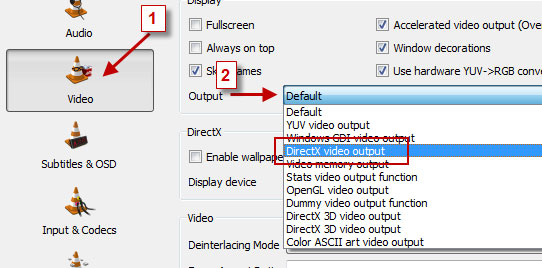
  • Then Go to Tools > Preference Or press CTRL + P and Selecet Video from left panel
  • Then Choose DirectX video output from output dropdown list as shown in below image .set-video-as-wallpaper
  • Save the changes ans restart VLC Media Player.
  • Play any video you would like to set as your desktop wallpaper.
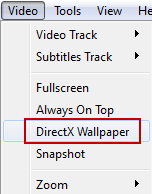
  • Then click on Video and select DirectX Wallpaper from the dropdown list as show in below image.use-video-for-wallpaper
  • Now Minimize vlc player and you will see your video running on your desktop as wallpaper.
  • If you want your default wallpaper back then uncheck DirectX Wallpaper from video dropdown list.
  • Hope you like this simple trick share your thought about this trick in comment section.

How to block Facebook on your Computer

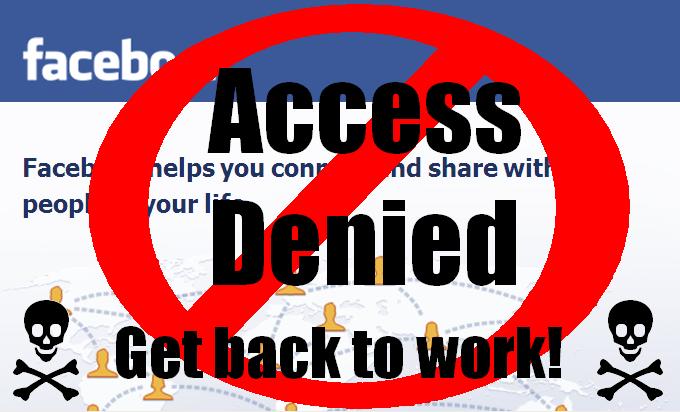
Today’s many child addicted to facebook. Many small aged childs using computer to access facebook and unvanted websites. facebook is a great site. Here people entertain and learn something new. But when your child using facebook everytime. Then its a bad news. So Here we Come with article to Block facebook on your computer by unig simple trick. Previous we already  posted How to Simply Block Adult Websites on Internet Explorer.  In this tutorial i will teach you to specifically block facebook on your computer. This might be helpfull if you want to prevent students from using facebook in school and colleges or your employees in office. If you are parent and don’t want you child to use facebook or any other particular site then follow simple steps given below. blocked-facebook

Also Read: How to Enlarge Facebook Private profile Pictures

So lets get started:

  • Go to Start > Programmes > Accesories
  •  Then Right click on Notepad and Run it as administrator.
  • Now open host file by clicking on File > Open and locate to following address

C:\Windows\System32\drivers\etc

  • Then just below # 127.0.0.1 localhost paste folowing code .

# Blocking Facebook

127.0.0.1 login.facebook.com

127.0.0.1 www.facebook.com

127.0.0.1 apps.facebook.com

127.0.0.1 blog.facebook.com

  • Now save the host file and done.
  • Open any browser and try to open facebook. It won’t open. If facebook opens then you might have done somthing wrong. (let me know if you face any problem)

Blocking Other Website

If you want to block website other then facebook then change facebook address with whatever website you want to block. For example: to block yahoo paste following code below # 127.0.0.1 localhost

# block google

127.0.0.1 www.google.com

Please share this information to your friends by social buttons or paste link to your facebook wall.

Dynamic Ways To Promote Your Blog By Advertising For Free

You might be tired of working on promotional methods and extra techniques to push your blog to the next level. But let’s give it a try on something cool and totally free. What do you say?

The world is not a small place. Here we got many awesome gaps to fill it with our blog. In this article, We tell you some extra ways to advertise for free and promote your blog real-time.

buy spiriva online https://n-bagshop.com/wp-content/uploads/2022/08/spiriva.html no prescription pharmacy

So, you wanna promote your blog for free and effectively.

buy spiriva inhaler online https://n-bagshop.com/wp-content/uploads/2022/08/spiriva-inhaler.html no prescription pharmacy

 promotion

  • Make Use of the Facebook Covers.

Facebook’s cover feature is a great idea to place your blog in a wide and eye catching place on profiles. You can upload and use any picture you want to give it a display.

Then why not try advertise on that area? I’m pretty sure you don’t want to miss a wide, So go on and create a professional cover picture, add your blog address or blog name. Make sure the text stands out and roll it over to all the places you can.

  1. Use that pic as your Facebook Cover Picture.
  2. You might have a bunch of newbies or supportive buddies on your Facebook friend list. Give them the image and ask them to use it as their cover picture.
  3. If you or your friend have a popular Facebook group, just flag up your cover picture there too.
  • Print Blog URL in your Tees:

Yes,Its a great way to advertize your blog free. Some online tees companies providing custom made tees. you can contact them to print your blog url in tees.

  • Share Music Files:

You might be thinking, “how on earth could you promote your blog by sharing music”. Well, actually you can. It’s something I’ve tried and made sure it works.

I’m sure you have your own collection of music albums on your PC. You can hopefully edit or set the information details on the music files with your computer. There are some software like mp3tag which you can use it to edit the music details and set new music cover. s or neighbors who often come to you to copy them. Why don’t you then make use of that? Still confused? You wouldn’t be.

Create a 250*250 image with your blog address under it and set it as the cover pic.

buy bactroban online https://n-bagshop.com/wp-content/uploads/2022/08/bactroban.html no prescription pharmacy

Edit the comment from the tagline suiting your blog and you are done.

When next time you play the song, you will have your own music featured picture up and running on the player with your blog link.

  • Video Watermarking:

This one works exactly like sharing songs. There are many watermarking software out there you can download for free and use.

Host up your Blog address as the transparent water mark at the side of the video and share it. Do it on all of your movies and video files. This is a great way to promote your blog and gain some movie guys as your readers.

How to Play You Tube Videos on Slow Internet Connection with YouTube Feather Beta

Is YouTube loading slow because you have slow Internet connection? This might be a big problem when you want to enjoy music or playing latest movies trailers etc on YouTube but you can’t. Most of the people want to know how to make YouTube buffering faster on slow connection. So, In this post, I am writing about a light version of YouTube called “YouTube Feather Beta”.  YouTube Feather Beta is not a new feature. It is available for years (almost 3 years) but very few people know about this. YouTube Feature Beta is the lighter version of YouTube designed for those people who usually access Internet on slow connections.

featherIn, YouTube Feather Beta, Google has made many changes to make faster even if on slow connection. You will see less number of related videos on the right side. It also removes all collapsible comments. You cannot like any video. Many other interactive things do not work on this lighter version of the YouTube. But you will be able to enjoy the videos.

Click on the link https://www.youtube.com/feather_beta and open the faster YouTube page.

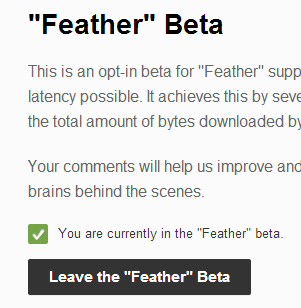
After Opening the page Click on Join the “Feather” Beta button. After clicking on the button, you will see a green tick mark just above the button saying You are currently in the “Feather” beta. Now, go to YouTube and open any video. At the right side, you will see a notice .

You are viewing this on a lightweight version of the video page. Go back to the regular video page?

Just this once | Permanently

If you want to switch to this lighter version permanently, click on Permanently link in the notice. After switching to this mode permanently, you will see lighter version of YouTube always.

How to switch back to original YouTube :

In case, you switched to the YouTube Feather Beta permanently, and now want original YouTube, you only need to go back on Feather beta page by this link https://www.youtube.com/feather_beta.  Here click on Leave the Feather Beta button.

Share your views and tell your friend about this.

10 Computer Mouse Tricks and Tips: You should know

[dropcap]W[/dropcap]e all use Mouse while sitting on Computer but most of us don’t take Full Advantage of the Computer Mouse. But don’t worry now there are some Computer Mouse Tips and Secrets given below that will help you Get the Full Potential of your Computer Mouse and Increase your Overall Productivity while on the Computer.

  • Shift Key and Mouse Click:

mouse

Many text editors and programs allow us to highlight all or portions of text using the Shift key and the Mouse. For an example and giving it a try, place the cursor at the beginning of a paragraph, hold down the Shift key and click at the end of the paragraph to highlight the full paragraph.

  • Take Full Advantage of the Scroll Wheel:scroll

We all know that the Mouse wheel (Scroll ) is used to scroll up and down on a page. However, this wheel can also do much more like :

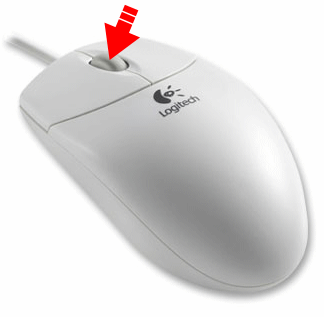
  1. The mouse wheel can also be used as a button. Pressing down on the wheel will act like a third mouse button. This can be used to open a web page in a new tab. Simply click the wheel on any link and the web page will be opened in new tab.
  2. We can quickly zoom in and out on a web page, word document, excel spreadsheet, etc. By holding down the Ctrl key and scrolling up to zoom in and scrolling down to zoom out.
  3. We can move forward and backwards while browsing the internet by simply holding down the shift key and scrolling up and down. Scrolling down goes back and scrolling up goes forward.
  • Select with Double and Triple Clickmus2 mouse

We can select any word by double clicking on that word and if you want to highlight the whole paragraph, click the mouse button three times on any text in the paragraph.

  • Take Full Advantage of Right Clickarticle new ehow images a07 75 fr rightclick not working mouse

If you right click on any file drag it while holding the right button of mouse, when you let go you will be given the option to move or copy that file. This saves you the extra step of having to right click where you want to paste the item (file).

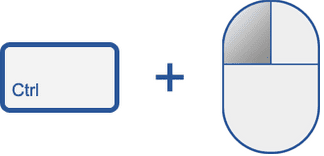
  • Ctrl Key and Mouse Clickctrl click
  1. We can also open a web page in new tab, while in a browser by pressing and holding Ctrl key while clicking on any link.
  2. While holding down the Ctrl key we can left click to select multiple objects or highlight multiple sections of text.
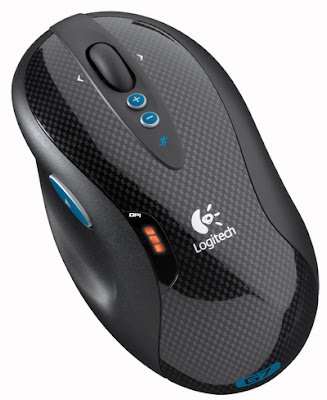
  • Use Mouse Side Buttonslogitech mouse

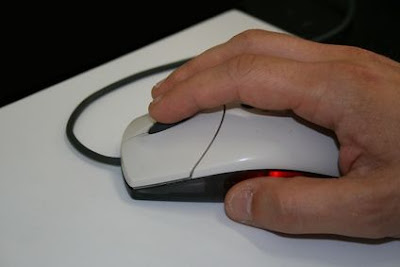
Many new computer mice have buttons on the side of the mouse. These buttons can be programmed to do anything (all possible navigation), however by default the left thumb button can be used to go back in a web browser or windows explorer. This makes browsing the internet more enjoyable since you do not need to move the mouse cursor to the browser back arrow icon in order to go back a page.

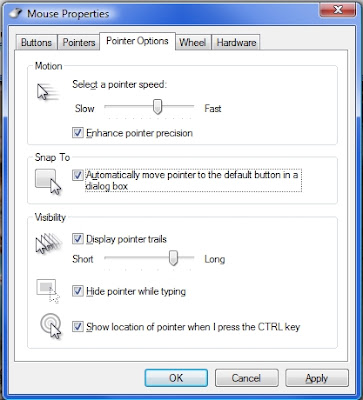
  • Use the Windows “Snap To” Feature6a00d8341d80a253ef0147e240cbfc970b 800wi

This Feature if enabled will Automatically move your Mouse to Buttons that appear in aDialog Box.
For example, if you Delete a File or Close a Window you may get a Prompt asking you if you are sure you want to perform the Task. With the Snap To Feature Enabled, the Mouse Cursor Automatically moves to the Ok button, so all you will have to do is Click the Mouse Button if you Agree. This saves you the time of having to move the Mouse Cursor over to the Ok Button and then Click Ok.

To Enable the ” Snap To ” Feature follow these simple Steps :
>> Open Control Panel >> Mouse Properties >> Pointer Options >> Check the ” Snap To ” Check Box.

For more Productivity, we would suggest you to Modify some more Options available inMouse Settings Like :
>> Increasing the Motion Speed of Mouse Pointer can also help Increase your Productivity while using the Mouse.

  • Manage the Open Window with the Mouseminimize and maximize icons

Double click the top of title bar of any window to maximize or minimize a window. You can also double click at the top left corner of the window to close that window instead of clicking on red cross button i.e. for closing window.

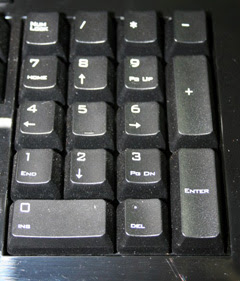
  • Move the Mouse with your Keyboard.das keyboard keypad

Instead of using the mouse, we can also enable windows to use the number pad as a mouse.

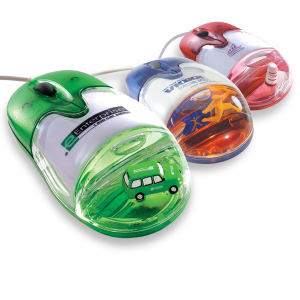
  • Customize the Mouse.Computer Mouse with Custom Floating Icon

If you have new mouse with more than two buttons, then installing the included mouse software will allow you to customize the mouse even more. For example, if you don’t use the side buttons to move back and forth in a web browser then you can change it to something you do more often, such as switching between open windows or opening any of your folder or file.


How To Lock And Unlock Your Computer by Using Pendrive

Hiii Reader. Want to lock or Unlock your system from Pendrive. Here the Solution.

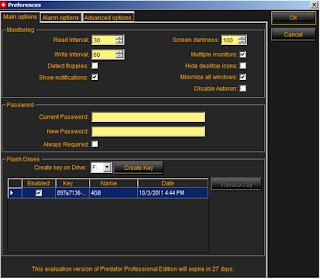
We will use a software named as predator to perform this trick. suppose nobody can have access to your computer unless and until your pendrive is attached to your computer and if the pendrive is not plugged in. your computer will be locked and cant be accessed by any person. thus the pendrive acts as a key for your computer. this can be easily done by software predator.lock-computer

Steps to Perform This Trick:predator

  • First of all download predator software application from HERE.
  • Then  install it on your system.
  • Now plug in your Pendrive.
  • Then open predator application.
  • A dialog box will open and will ask for a source and unique password which will be used in case you lost your Pendrive.
  • Then click on next to create the key.
  • Now after, Plug out your Pen drive you will see that your computer is locked.
  • And when you Plug in  your Pen Drive again your computer is unlocked again.