

Home Blog Page 39

How to Use Fiverr to Make Unlimited Money: PRO Guide

Do You want to make money online? If Yes then this article really help you to make money with Fiverr by doing easy micro jobs. In this guide i will show you How to Use Fiverr to make unlimited money.

Fiverr is a global online marketplace offering tasks and services, at a cost of $5.00 per job performed. They call it GIG, so when you are buying anything from Fiverr then in their technical term you are buying GIGS. 

Fiverr is an one of the largest freelancing websites where users can use fiverr to Make Money From Home by completing short online freelance project such as social media jobs, email marketing jobs, content writing, advertising jobs etc. Users can register an account for free on Fiverr. 

[su_button url=”https://www.itechcube.com/proceed/fiverr/” target=”blank” style=”stroked” background=”#1822df” color=”#ffffff” size=”9″ center=”yes” radius=”round” icon=”icon: paper-plane-o” icon_color=”#6dec3e” rel=”nofollow”]Register an account for free on Fiverr. [/su_button]


Recommended: Top 5 Fiverr Alternatives to Buy & Sell Services Online

There are thousands of well trained and talented persons regularly joining this freelance marketplace to make extra cash. Most of people are from USA, Canada, France, Germany, China and India.

How You can Make Money With Fiverr:

Fiverr is free to Join and you can list your service at $5. They will keep $1 from every gig which you will sell via Fiverr, in simple we can say; they are keeping $1 as commission and you receive $4 for every sell. 

You can sell any service in Fiverr like logo designing, website promotion, social media work, seo work, video editing, banner creation,  anything you want.

If you want to make money through Fiverr, you should think about the things that are unique to you. Think of something that you’re really good at, something unique to you, and apply this thing to your GIGs.

  • First Join The Fiverr for FREE
  • After creating Account on Fiverr. Click on  Start Selling Menu on Top.
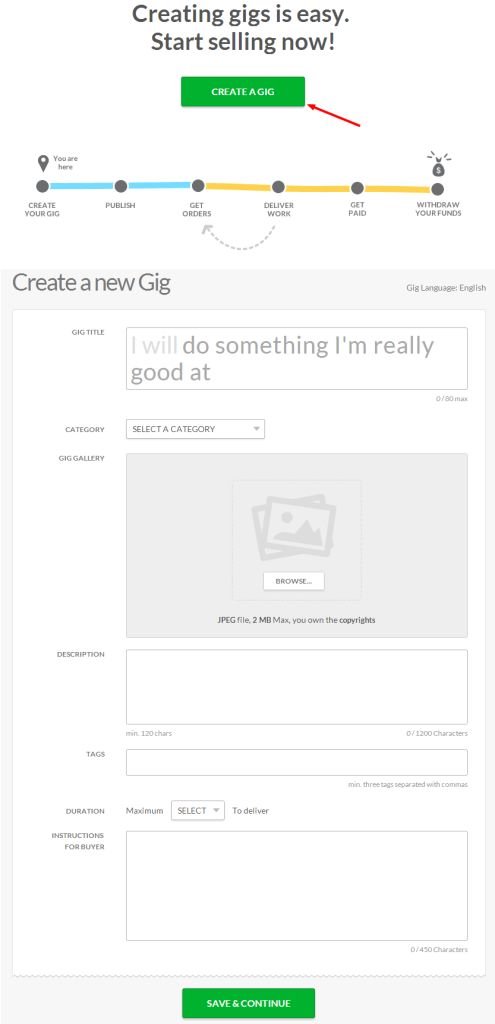
  • Now Click on Create a GIG. and in next page fill all fields about your gig.


make money with fiverr

  • In next step, Fiverr ask you to upload video (By uploading Video you get more sells). You can upload or skip this step.
  • Now Publish your GIG and get buyers.
  • Now your Gig is live. Now you can also Create another one.

[su_button url=”https://www.itechcube.com/proceed/fiverr/” target=”blank” style=”stroked” background=”#676ee7″ color=”#ffffff” size=”9″ center=”yes” radius=”round” icon=”icon: paper-plane-o” icon_color=”#f4b879″ desc=”Register Now” rel=”nofollow”]Start Making Money With Fiverr [/su_button]

We hope you liked this guide to make money with fiverr. After creating account on Fiverr you must read our another fiverr article How to Sell on Fiverr: Pro Tips to Sell Services

SEO Tags: Other Sites Like Fiverr,  Fiverr Type Sites, How to Make Money Online, How to Make Money Legally, Free Ways to Make Money, Sites Like Freelancer, Freelance Work Online

How to Disable Auto Play Videos in Facebook News Feed

Facebook is the biggest online marketplace to connect with family and friends.

We use facebook everyday. Facebook is like become a daily doze of our lives.

Recently Facebook enabled auto play videos in our news feed. When we open facebook in desktop and scroll.

if any video found then it play automatically. Sometimes this thing irritate us. And we won’t this feature, so don’t worry I’m going to tell you how you can disable this feature.

If auto-play is On, videos will auto-play using a mobile data connection. The data used depends on the amount of time you spend watching a video. If you scroll past an auto-play video in News Feed, your phone will use less data than if you stop to watch it for a longer period of time.

If auto-play is Wi-Fi only, videos will auto-play only when your phone or tablet is connected to Wi-Fi. If you’re using Facebook on a mobile data connection, you’ll have to click on a video to play it. If you click and play a video while using a mobile data connection, it will use mobile data.

Note: You might need to click a video to play it even if your auto-play settings are On. This could happen if the mobile connection is slow or if you’ve used a large amount of mobile data recently.

If you are in Facebook Android App then Read How to Stop Auto Play Videos in Facebook Android App

Guide to Disable Auto Play Videos in Facebook News Feed

Follow the steps to disable Auto Play Videos in Facebook News Feed.

  • First You just Click Here to go to video settings page.

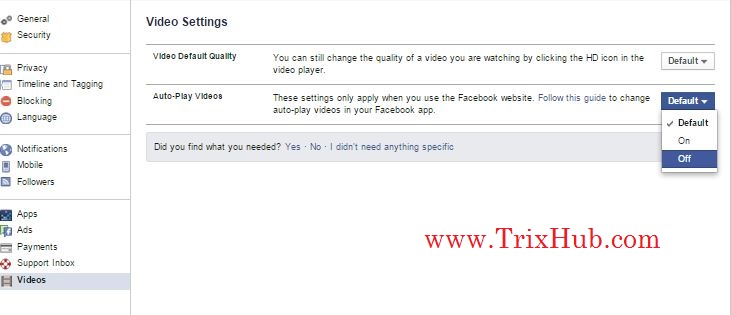
facebook auto play videos

  • Now in Auto Play Videos, You just select Off and go back to home page.
  • Now your auto play videos in news feed is disabled. you can scroll freely.

That’t it. Now you facebook auto play  is disabled.

SEO Tags: Turn Off Facebook Autoplay, How to Stop Facebook Videos from Autoplaying, How to Turn Off Videos on Facebook, Facebook Autoplay Android, Turn Off Autoplay Facebook Video,

Infolinks Review (In Text Advertising) , Payment Proof, Scam Advice

7

Hello Guys, I have written many advertising network reviews and Today i’m come with another ad network review, Infolinks In-Text Advertising Network. Infolinks is a best In Text Advertising network and its a good adsense alternative to make money online from blogs. Making Money Online is not an easy job. It takes patience and hard work. When your blog stated to getting traffic then you can thing to earn money. I have created this blog to help beginners, Previous i also reviewed many ad networks and written many tricks to make money online. if you are running a blog with decent amount of traffic / visitors, you can signup with Infolinks to increase your online income streams. Its always a good option to have multiple income streams rather than relying on the single online income source.

Infolinks is one of the most popular In Text advertisement platform. The most unique feature of Infolinks are that you will not need any kind of space in your website or blog for showing the ads.  In the Infolinks Review I will show you why a publisher should use Infolinks instead of other ordinary advisement solution. You also can check Top 5 In text Advertising Networks For Bloggers.


How Infolinks Works

Infolink is not like banner advertising or other traditional advertising service. It uses some keywords to show relevant add to your blog or website visitors. And the highlighted keywords will be marked and shown as a link to advertiser website. when a visitor on publisher’s blog / website views or clicks on that advertisement, that publisher gets credited with a certain share of money.

Advantage of using Infolinks

  1. Easy to install: Integration process of Infolinks ads is very easy. They have one click option for wordpress with their official plugin. The blogger platform can use Java Script. Other publisher also can use JAVA script for simple use.If WordPress users don’t want to use plugin then they can simply use their javascript code.
  2. No Space for showing adds : Infolinks are based on the in line text ads that is why it will not require any space for showing ads to visitors.
  3. Don’t slow down Website: Infolinks don’t use complex codes to generate ads. It will just convert some keywords to link using very simple java script. So your website will not be slow if you use Infolinks ads.
  4. User Interface: The first thing that you notice after joining Infolinks that their simple but excellent User Interface. It is very Easy to use and anyone can easily understand all the process of Dashboard.

[su_button url=”https://www.itechcube.com/proceed/infolinks/” target=”blank” style=”stroked” background=”#23c538″ color=”#ffffff” size=”9″ center=”yes” radius=”round” icon=”icon: paper-plane-o” icon_color=”#ef3922″ rel=”nofollow”]Sign Up For Infolinks[/su_button]

Is Infolinks a Scam

No, Never. Infolinks really a best In text advertising network that help publishers to earn more from their content. I received payment from Infolinks, Bellow added screenshot for payment proof. So don’t think Infolinks is a Scam.

Infolinks Payment Methods

Infolinks support wide variety of payment methods which include Paypal, Payoneer, Check and Bank Wire Transfer. Infolinks pays publishers in Net 45 Terms.

  1. Paypal – Paypal minimum threshold is USD 50.00,  Transaction fees apply: 2% of the amount, maximum USD 10.
  2. Payoneer – Payoneer minimum threshold is USD 50.00. Payoneer transaction fees apply.
  3. Check – Via check minimum threshold is USD 50.00. Transaction Fees: USD 6.00. 2% Currency conversion fee may apply.
  4. Wire Transfer – Wire Transfermethod minimum threshold is USD 100.00. Transaction Fees: USD 25.00. 2% Currency conversion fee may apply.

How Much Money You will Earn with Infolinks

Here in this blog Trixhub.com basically I’m using Adsense and Affiliate Networks. But We have used many ad networks in our different sites and using that time. In our different high traffic site i’m using infolinks ads. They pays in CPC and CPM model.

Infolinks income depends on the location/country/region of visitors from where they are accessing your website. Websites which have traffic from USA, United Kingdom, Germany, France, Australia and European regions tend to make more money than those sites who have their visitors from Asian countries.

Infolinks Compatible With Adsense or Not

The Infolinks Team claims that they are the best fit with Google Adsense. If you are already using Google Adsense on your blog to generate money, Infolinks will help to add a bit more to your current earnings. You can use both Infolinks and Adsense in same blog. Recently Infolinks has also formed a partnership with Google’s Ad Exchange and offering its premium publishers the opportunity to signup with Google Ad Exchange and show ads which generate higher amount of revenue for you.

Infolinks Payment Proof

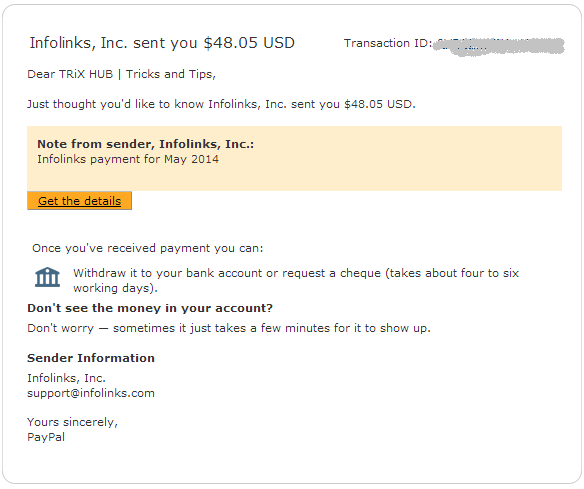
When publisher reaches amount of $50 then Infolinks pay their publisher via specified method. I have received my first payment from Infolinks via Paypal. They paid me previous $48.05. See the Infolinks payment proof.

infolinks payment proof

Infolinks Network Overview

NameInfoLink
Websitewww.infolinks.com
Type of NetworkPPC, CPC, CPM
Type of AdIn-text links, frame etc
Minimum payment50$
Payment Frequency:45 days after earning 50$
Payment MethodPayPal, Payoneer, Wire, ACH

How to get the Infolinks Ads in your Blog / Website

If you decided to run Infolinks ads on your blog / website. Then first you have to register on Infolinks. After successful registration, you will need to add your blog’s URL then Infolinks Team will check your website and they will accept or reject the application. InfoLinks isn’t hard at approval process and they mostly approve all legitimate websites with legal content. Once your blog gets approved, you can add javascript code on the footer of your blog’s template. If you are using WordPress then you can simply use Official Plugin. Now clear cache and refresh your website, you will see Infolinks Ads.

[su_button url=”https://www.itechcube.com/proceed/infolinks/” target=”blank” style=”stroked” background=”#e64e4f” color=”#ffffff” size=”9″ center=”yes” radius=”round” icon=”icon: paper-plane-o” icon_color=”#6dec3e” desc=”Make Money From Your Blog” rel=”nofollow”]Register Now With Infolinks[/su_button]

SEO Tags: Best Adsense Alternatives, Adsense Alternatives Pay Per Impression, Infolinks vs Adsense

How To Recover Deleted Facebook Messages, Pictures & Videos

Hi guys, After a long time i come here with a social media trick. I haven’t posted any facebook, twitter tricks from long run. Sorry for this.

But today, I’m going to share a nice facebook trick that will help you to Recover deleted facebook messages, Photos and Videos and much more.

Basically its a Facebook Feature which not many people are aware of and hence i will be writing this tutorial to let you guys know about this amazing trick that Facebook Provides.

Many a times We Delete Messages, Photos or Videos from our Facebook profile which is not intentional but once we do , we can not undo it. and its gone forever.

But wait, There is a solution to recover deleted facebook messages, photos & videos. So even if you delete anything from your facebook account, you can get it back. Facebook have all your data in their archive which you can download too.

Recover Deleted Facebook Messages, Pictures & Videos

Follow the Below simple steps to Know how you can get back and have access to your deleted messages, photos,Videos and all other data of your facebook profile.

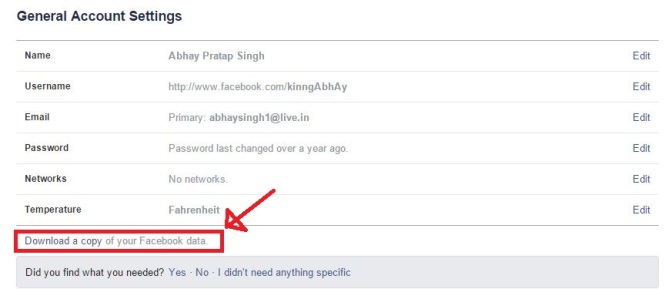
Step 1: First of all,You will have to Click here to open Facebook General account Settings.

facebook settings

Step 2: Once you open your general settings, you will see Download a Copy of your Facebook Data, So click on it to.

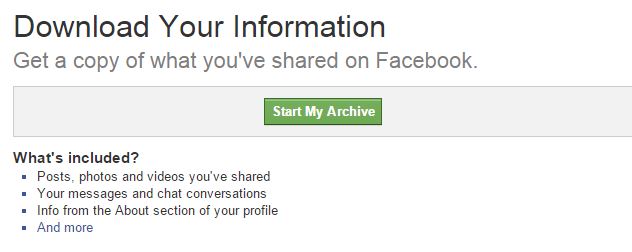
Step 3: On the Next page you will see a Download Archive Button.

facebook data download

Step 4: Click on it and you will be prompt to enter your Password to Continue, This is a Security Step by Facebook.

Step 5: After entering your Facebook Password, Click on Submit, On the next screen you will be shown that the download link for your data will be sent to your email id which you used to create your facebook account.

Step 6: Wait for Few Minutes, check your mail. You will see a mail from facebook in your Inbox with Download link ready for you to download all your data.

Step 7: Now Download the file and Unzip it and open the folder where you will find your messages, photos, vidoes. Pokes, Friend list etc.

The Files will be in .html format so you will have to double click on the file and select your Favorite Browser to open the file, the File will open up in your browser where you will have access to all your data..You don not need internet connection to open this file. you can open offline anytime.

I Hope this guide will help you to find Deleted Facebook Messages,Photos and Videos. Don’t forget to Share it with your friends.

SEO Tags: How to Recover Facebook Messages, Retrieve Old Facebook Messages, Facebook Deleted Message Recovery, Recover Deleted Facebook Messages 2015

Notepad Trick: Convert Any Text Into Audio With Simple VBScript Code

Hello Guys, Now I want to tell you a very simple and easy Notepad Trick. By using this Windows Notepad Trick, you can convert any text into audio or voice. This is very easy and simple trick for understand.

You use many softwares which needs heavy space on your Hard Disk Drive. But this Trick needs no space on your HDD. This trick run with your windows notpad. Yes, You just have to add few lines of VB code into notpad. Read bellow to understand more.

Easy Notepad Trick to Convert Any Text Into Audio

  1. First Open Notepad in your PC.
  2. Copy & Paste below VBScript in your Notepad.

Dim msg, sapi
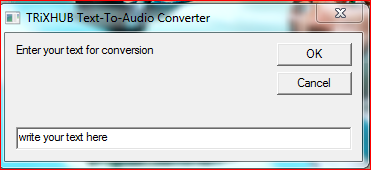
msg=InputBox("Enter your text for conversion","TRiXHUB Text-To-Audio Converter")
Set sapi=CreateObject("sapi.spvoice")
sapi.Speak msg

Now Click on “Save As” and give the name extension .vbs

That’s it. Now open file and type something, you want to listen. Then press OK. And you will listen the words you written.