



If you are running an older version of CyberPanel, Upgrade CyberPanel to the latest version is important for security, performance, and new features.
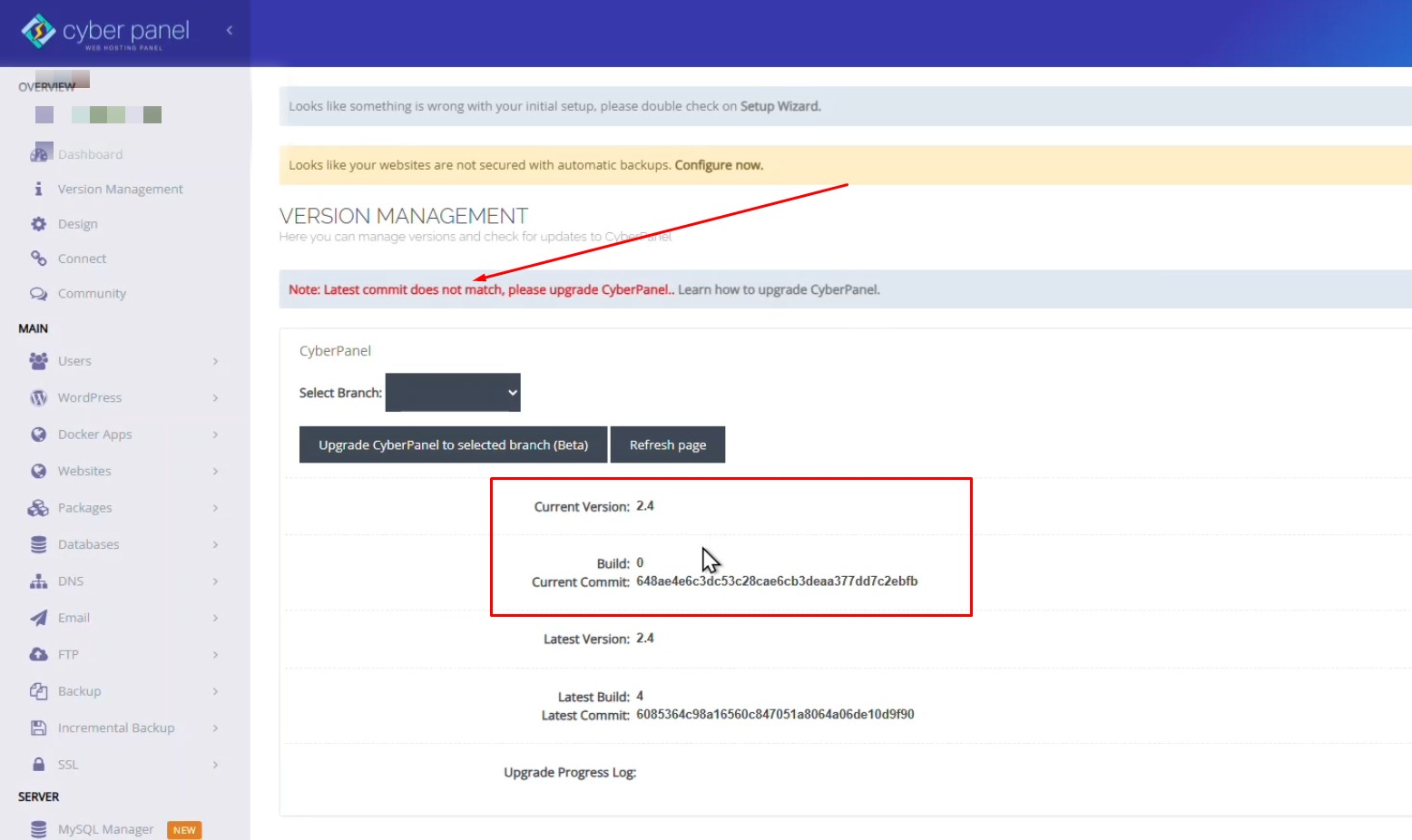
Many users still run CyberPanel 2.4.0, which uses an older dashboard design and may show warnings like: “Latest commit does not match, please upgrade CyberPanel.”
In this tutorial, you will learn how to upgrade CyberPanel Latest Stable Release 2.4.5 safely using SSH without affecting your websites.
Why Upgrade CyberPanel?
Upgrading CyberPanel provides several benefits:
1. Improved User Interface
CyberPanel 3.x includes a modern dashboard and improved UI compared to older versions.
2. Better Security
New versions include security patches and updates for server components.
3. Improved Performance
CyberPanel runs on
OpenLiteSpeed
which receives performance improvements in newer releases.
4. Bug Fixes
Many bugs in CyberPanel 2.x have been fixed in later versions.
Requirements Before Upgrading
Before starting the upgrade, make sure your server meets these requirements:
- Root SSH access
- Minimum 1 GB RAM
- At least 2 GB free disk space
- Compatible OS such as:
- Ubuntu 20.04 / 22.04
- AlmaLinux
- Rocky Linux
Guide to Upgrade CyberPanel
Step 1: Backup Your Server
Before upgrading, always create a backup. Its good to Create a Snapshot using Server Provide Panel.
Backup important data like:
- Websites
- Databases
- Configuration files
Step 2: Login to Your Server via SSH
Connect to your server using SSH.
ssh root@your-server-ipReplace your-server-ip with your server’s IP address.
Step 3: Run the CyberPanel Upgrade Script
Execute the official upgrade script:
sh <(curl https://raw.githubusercontent.com/usmannasir/cyberpanel/stable/preUpgrade.sh)or If you want to Upgrad CyberPanel to a specific version, Replace <branch name> with actual branch name from Github
sh <(curl https://raw.githubusercontent.com/usmannasir/cyberpanel/<branch name>/cyberpanel_upgrade.sh)This script will:
- Download the latest CyberPanel files
- Upgrade the control panel
- Apply required updates
- Restart necessary services
The process usually takes 10–15 minutes depending on your server speed.
Step 4: Restart CyberPanel Service
After the upgrade completes, restart the CyberPanel service:
systemctl restart lscpdStep 5: Verify the Upgrade
Now open CyberPanel in your browser with your server IP: https://your-server-ip:8090
You should now see the updated CyberPanel version under Dashboard → Version Management